Kodi IPTV Setup - Complete Guide with PVR IPTV Simple Client
Master Kodi for IPTV streaming. Complete guide to installing PVR IPTV Simple Client addon, configuring M3U playlists, EPG setup, and optimizing Kodi for the best IPTV experience.
Legal Disclaimer:
This guide is for educational purposes only. Kodi is a legal, open-source media center application. Always use it with licensed IPTV services that have proper content distribution rights.
What is Kodi?
Kodi is a free, open-source media center software that transforms your device into a complete entertainment hub. Originally developed as Xbox Media Center (XMBC), Kodi supports virtually every media format and can be customized with thousands of addons, including PVR IPTV Simple Client for IPTV streaming.
Kodi's power lies in its flexibility and customization options. While it has a steeper learning curve than dedicated IPTV players, it offers unmatched control over your media experience, extensive skin options, and the ability to integrate IPTV with your local media library.
Key Features of Kodi for IPTV
- Free and open-source media center
- Available on all major platforms (Windows, Mac, Linux, Android, iOS, Raspberry Pi)
- PVR IPTV Simple Client addon for IPTV streaming
- Full EPG (Electronic Program Guide) support
- Recording and timeshift capabilities
- Extensive customization with skins and themes
- Integration with local media library
- Support for M3U and M3U8 playlists
- Multiple addon support for extended functionality
- Remote control apps available
Step 1: Install Kodi
For Windows:
- Visit kodi.tv official website
- Click "Download" and select Windows
- Download the installer (64-bit recommended)
- Run the installer and follow wizard
- Launch Kodi after installation
For macOS:
- Visit kodi.tv
- Download Kodi for macOS
- Open the DMG file
- Drag Kodi to Applications folder
- Launch from Applications
For Android:
- Open Google Play Store
- Search for "Kodi"
- Tap "Install"
- Open Kodi after installation
For Firestick:
- Enable Apps from Unknown Sources in Settings
- Install Downloader app from Amazon Appstore
- Use Downloader to get Kodi APK from kodi.tv
- Install and launch Kodi
Step 2: Install PVR IPTV Simple Client Addon
1. Access Addons Menu:
- Launch Kodi
- Click on "Add-ons" from main menu
- Or navigate to Settings (gear icon) Add-ons
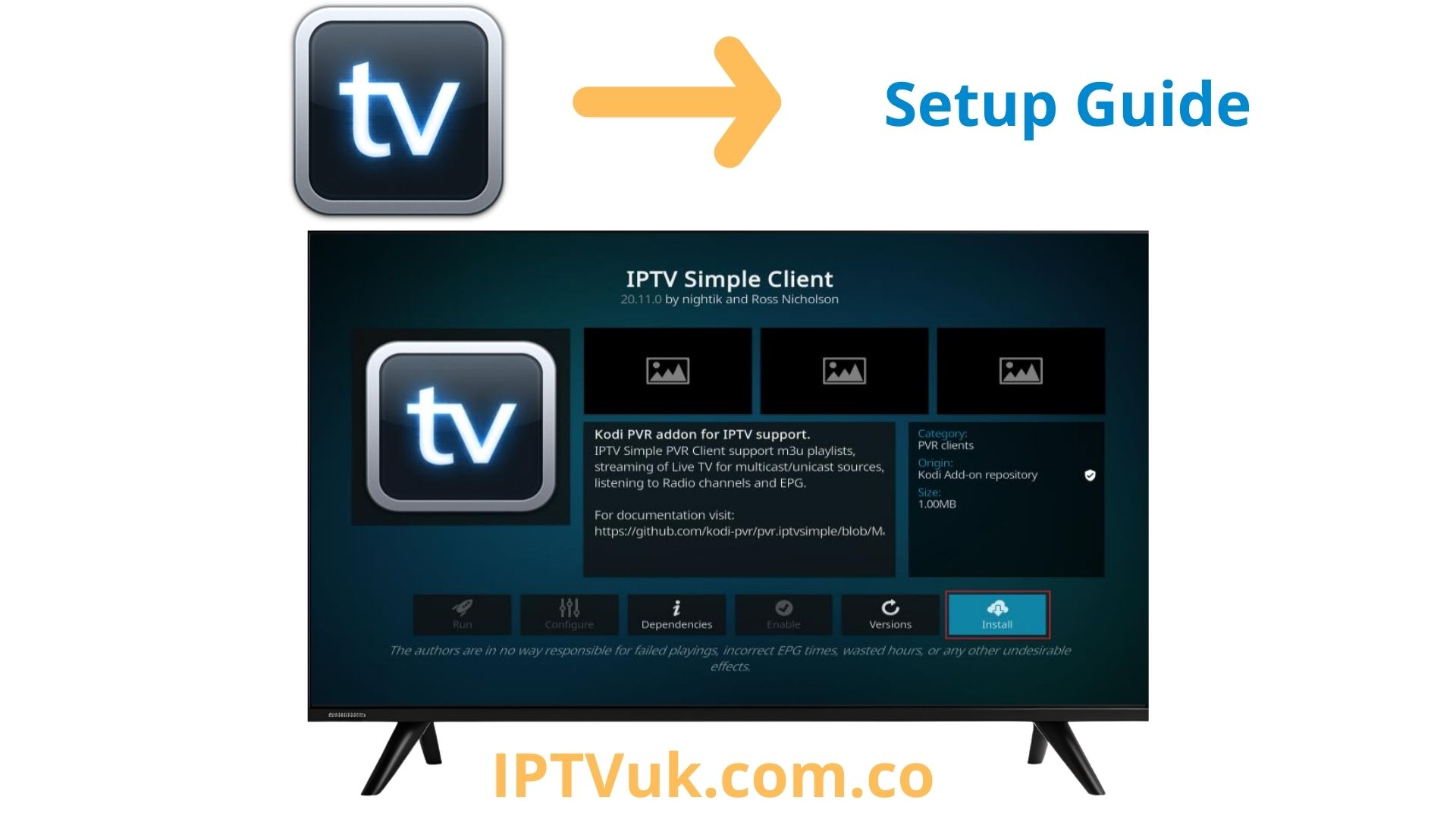
2. Enable PVR IPTV Simple Client:
- Click "My add-ons"
- Select "PVR clients"
- Find "PVR IPTV Simple Client"
- Click on it to open
- Click "Enable" button
Note: PVR IPTV Simple Client comes pre-installed with Kodi but is disabled by default.
Looking for a reliable IPTV provider? Top-rated services offer 12H and 24H free trials with instant activation, allowing you to start streaming immediately. It's an excellent way to test quality, channel selection, and performance before making a commitment. Visit our Best IPTV Providers page to find the perfect match for your needs.
Step 3: Configure PVR IPTV Simple Client
1. Access Configuration:
- After enabling, click "Configure"
- Or right-click and select "Settings"
2. General Settings:
- Location: Select "Remote Path (Internet address)"
- M3U Play List URL: Paste your M3U playlist URL
- Or select "Local Path" if using downloaded M3U file
3. EPG Settings:
- Click "EPG Settings" tab
- XMLTV Location: Select "Remote Path"
- XMLTV URL: Paste your EPG URL
- Set EPG time shift (if needed for timezone)
4. Save and Restart:
- Click "OK" to save settings
- Kodi will prompt to restart
- Click "Yes" to restart
- Channels will load after restart
Step 4: Access Live TV in Kodi
1. Navigate to TV:
- From Kodi main menu, select "TV"
- Or click "Live TV" if visible
2. Browse Channels:
- Select "Channels" to see all available channels
- Browse by category or group
- Click any channel to start streaming
3. Use EPG Guide:
- Select "Guide" from TV menu
- View current and upcoming programs
- Navigate by time and channel
- Click a program to watch or record
Step 5: Customize Kodi for IPTV
Install a Better Skin:
- Go to Settings Interface Skin
- Click "Get more..."
- Browse available skins (Aeon Nox, Confluence, etc.)
- Select and install your preferred skin
- Confirm to switch to new skin
Organize Channel Groups:
- In PVR IPTV Simple Client settings
- Go to "Channel Manager" tab
- Enable "Use channel groups from backend"
- Channels will be organized by categories
Setup Favorites:
- While watching a channel, press "C" key
- Or right-click and select "Add to favorites"
- Access favorites from main menu
Step 6: Advanced Features
Recording Live TV:
- While watching, press "R" key or right-click
- Select "Record"
- Recording starts immediately
- Access recordings from TV Recordings
- Set recording path in PVR settings
Schedule Recordings from EPG:
- Open EPG Guide
- Navigate to future program
- Right-click and select "Record"
- Kodi will record automatically at scheduled time
Timeshift (Pause Live TV):
- Enable in PVR IPTV Simple Client settings
- Go to "Timeshift" tab
- Enable timeshift
- Set buffer path and size
- Press pause while watching live TV
Install Kodi Remote App:
- Download "Kore" (Android) or "Official Kodi Remote" (iOS)
- Ensure device and Kodi on same network
- Enable remote control in Kodi settings
- Connect app to Kodi
- Control Kodi from your phone
Optimizing Kodi for IPTV Performance
Adjust Video Cache:
- Install "Easy Advanced Settings" addon
- Or manually edit advancedsettings.xml
- Increase video cache size
- Set buffer mode to 1 (buffer all internet streams)
- Restart Kodi
Hardware Acceleration:
- Go to Settings Player Videos
- Enable hardware acceleration
- Select appropriate method for your system
- Improves playback performance
Adjust Display Settings:
- Go to Settings System Display
- Set resolution to match your display
- Adjust refresh rate
- Enable "Sync playback to display"
Troubleshooting Common Issues
Channels Not Loading:
- Verify M3U URL is correct
- Check internet connection
- Disable and re-enable PVR IPTV Simple Client
- Clear cache and restart Kodi
- Update to latest Kodi version
Buffering Problems:
- Increase video cache size
- Check internet speed (need 10+ Mbps for HD)
- Close other bandwidth-heavy applications
- Use wired Ethernet instead of WiFi
- Try different video player in settings
EPG Not Showing:
- Verify EPG URL is correct (XMLTV format)
- Check EPG time shift settings
- Manually update EPG (PVR settings Trigger EPG update)
- Ensure sufficient storage for EPG data
Kodi Crashing:
- Update to latest Kodi version
- Disable problematic addons
- Clear cache and thumbnails
- Reset Kodi to default settings
- Reinstall Kodi if issues persist
Tips for Best Kodi IPTV Experience
- Keep Kodi updated to latest stable version
- Use a lightweight skin for better performance
- Regularly clear cache to free up space
- Enable hardware acceleration for smoother playback
- Use Kodi remote app for easier navigation
- Backup your Kodi configuration regularly
- Organize channels into groups for easier browsing
- Set up automatic EPG updates
Kodi vs Dedicated IPTV Players
Advantages of Kodi:
- Free and open-source
- Extensive customization options
- Integration with local media library
- Recording and timeshift capabilities
- Thousands of addons available
- Works on virtually every platform
Limitations:
- Steeper learning curve
- Requires more setup and configuration
- Can be resource-intensive
- Interface less polished than dedicated players
- No Xtream Codes API support (M3U only)
Conclusion
Kodi with PVR IPTV Simple Client is an excellent choice for advanced users who want complete control over their IPTV experience. While it requires more setup than dedicated IPTV players, the flexibility, customization options, and ability to integrate IPTV with your entire media library make it worth the effort.
By following this guide, you should have Kodi fully configured for IPTV streaming with EPG, recording, and all advanced features. Remember to always use Kodi with legitimate IPTV services that have proper content licensing.
Frequently Asked Questions
Is Kodi legal for IPTV?
Yes, Kodi itself is completely legal and open-source. Using Kodi with PVR IPTV Simple Client is also legal. However, the legality depends on the IPTV service you use. Always use licensed IPTV providers with proper content distribution rights.
Can Kodi record IPTV streams?
Yes, Kodi supports recording live TV through PVR IPTV Simple Client. You can record manually while watching or schedule recordings from the EPG guide. Recordings are saved to your device storage.
Does Kodi work on Firestick?
Yes, Kodi works on Amazon Firestick. You can sideload it using the Downloader app. However, navigation with the Firestick remote can be less intuitive than dedicated IPTV players like TiviMate.
Why is Kodi buffering with IPTV?
Buffering is usually caused by slow internet, low video cache settings, or server issues. Increase video cache size in advancedsettings.xml, ensure 10+ Mbps internet speed, and enable hardware acceleration for better performance.
Does Kodi support Xtream Codes?
PVR IPTV Simple Client does not natively support Xtream Codes API. However, you can ask your IPTV provider for an M3U playlist URL, which Kodi supports. Alternatively, use third-party addons that support Xtream Codes.
Is Kodi better than TiviMate for IPTV?
It depends on your needs. Kodi offers more customization, media library integration, and recording features. TiviMate has a more polished interface, easier setup, Xtream Codes support, and is specifically designed for IPTV. Choose based on your priorities.