IBO Player - Complete Setup Guide for IPTV Streaming
Learn how to install and configure IBO Player on all devices. Complete step-by-step tutorial covering installation, Xtream Codes setup, M3U playlist configuration, EPG integration, and advanced features for optimal IPTV streaming.
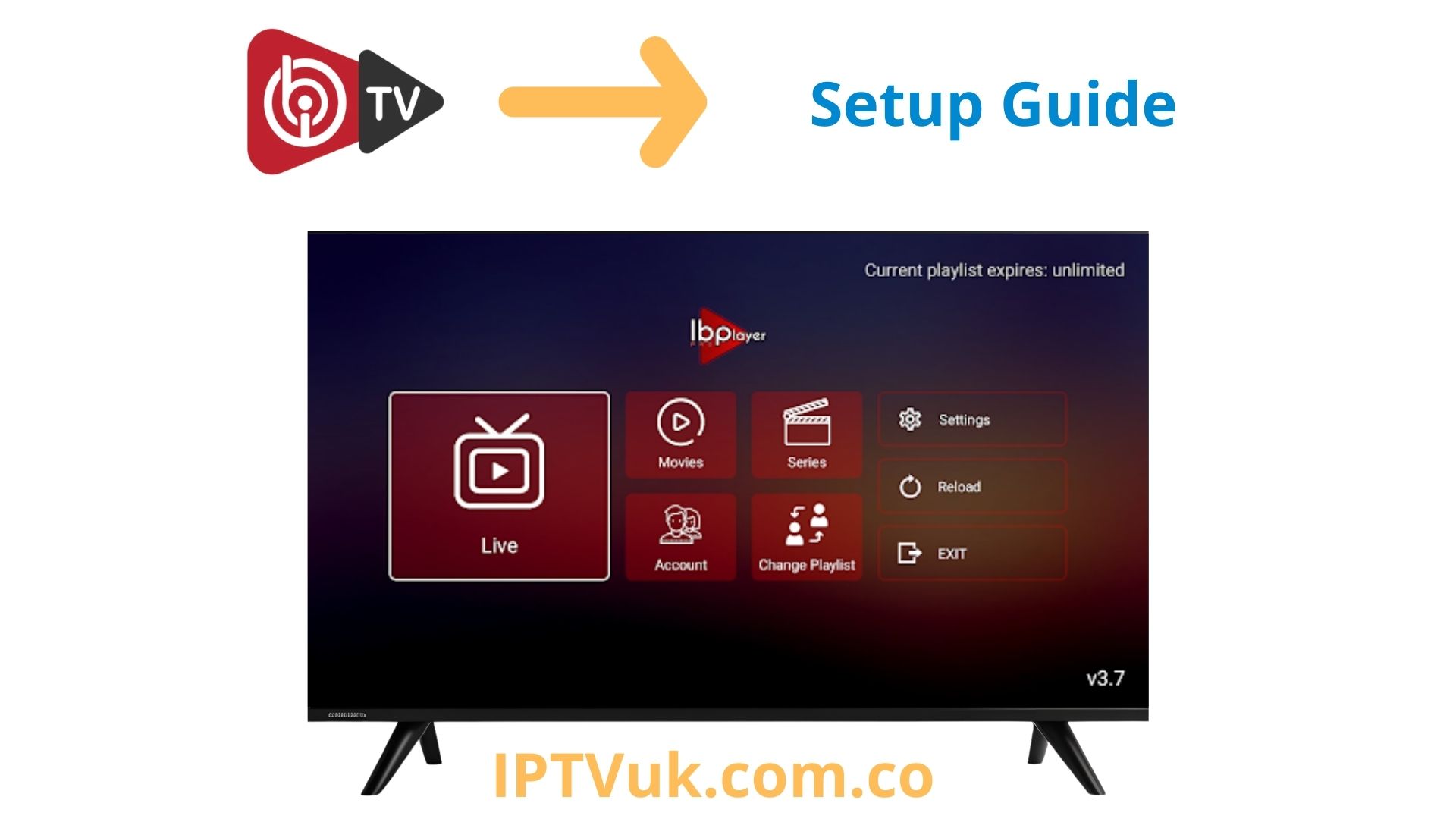
What is IBO Player?
IBO Player is a modern, feature-rich IPTV player designed for seamless streaming across multiple platforms. Combining powerful functionality with an intuitive interface, IBO Player supports both Xtream Codes API and M3U playlists, making it compatible with virtually all IPTV services.
Available for Android, iOS, Smart TVs, and Firestick, IBO Player offers advanced features including EPG support, catch-up TV, recording capabilities, parental controls, and multi-screen viewing. Its clean, user-friendly design makes it perfect for both beginners and experienced IPTV users.
Key Features of IBO Player
- Cross-Platform Support: Works on Android, iOS, Smart TV, Firestick, and web browsers
- Dual Format Support: Compatible with both Xtream Codes and M3U playlists
- EPG Integration: Full electronic program guide with schedule information
- Catch-Up TV: Watch previously aired content when available
- Recording Function: Record live TV and schedule recordings
- Parental Controls: Protect content with PIN codes
- Multi-Screen: Picture-in-picture and split-screen viewing
- Favorites Management: Create custom channel lists
- Modern Interface: Clean, intuitive design with customization options
IBO Player Installation Guide
Installing IBO Player is straightforward across all supported platforms. Follow the instructions for your specific device to get started.
Installing IBO Player on Android Devices
Step 1: Download IBO Player
- Open Google Play Store on your Android device
- Search for "IBO Player" or "IBO Player Pro"
- Tap "Install" to download the app
- Wait for installation to complete
Step 2: Launch the App
- Open IBO Player from your app drawer
- Accept terms and conditions if prompted
- Grant necessary permissions (storage, network)
Installing IBO Player on Firestick
Method 1: Amazon Appstore
- Navigate to the Search icon on Firestick home screen
- Type "IBO Player" using the on-screen keyboard
- Select IBO Player from search results
- Click "Download" or "Get" to install
- Wait for installation to finish
- Click "Open" to launch the app
Method 2: Downloader App (Alternative)
- Install Downloader app from Amazon Appstore
- Open Downloader and enter the IBO Player APK URL
- Download and install the APK file
- Launch IBO Player from Apps section
Installing IBO Player on iOS (iPhone/iPad)
- Open the App Store on your iOS device
- Search for "IBO Player"
- Tap "Get" then "Install"
- Authenticate with Face ID, Touch ID, or password
- Wait for download and installation
- Open IBO Player from your home screen
Installing IBO Player on Smart TV
- Open your Smart TV's app store (Google Play Store for Android TV)
- Search for "IBO Player"
- Select and install the application
- Launch IBO Player from your apps menu
Looking for a reliable IPTV provider? Top-rated services offer 12H and 24H free trials with instant activation, allowing you to start streaming immediately. It's an excellent way to test quality, channel selection, and performance before making a commitment. Visit our Best IPTV Providers page to find the perfect match for your needs.
Setting Up IBO Player with Xtream Codes
Xtream Codes is the recommended method for configuring IBO Player, offering automatic EPG integration and better organization.
Step 1: Obtain Your Xtream Codes Credentials
Contact your IPTV provider to get:
- Server URL (e.g., http://example.com:8080)
- Username
- Password
Step 2: Add Xtream Codes to IBO Player
- Open IBO Player
- Tap the "+" icon or "Add Playlist" button
- Select "Xtream Codes API" or "Login with Xtream"
- Enter your server URL (without /get.php)
- Input your username
- Input your password
- Give your playlist a name (e.g., "My IPTV")
- Tap "Add" or "Save"
Step 3: Load Your Channels
- IBO Player will connect to the server
- Channels, VOD, and series will load automatically
- EPG data will be integrated automatically
- Wait for the process to complete
Setting Up IBO Player with M3U Playlist
If your IPTV provider uses M3U playlists instead of Xtream Codes, follow these steps.
Step 1: Get Your M3U URL
Obtain your M3U playlist URL from your IPTV provider. It typically looks like:
http://example.com/playlist.m3u
Step 2: Add M3U Playlist to IBO Player
- Open IBO Player
- Tap the "+" icon or "Add Playlist"
- Select "M3U URL" or "Add M3U Playlist"
- Paste your M3U URL
- Name your playlist
- Tap "Add" or "OK"
Step 3: Configure EPG (Optional)
- If your provider offers separate EPG, add the EPG URL
- Go to Settings → EPG Settings
- Enter your EPG URL
- Save and refresh EPG data
Configuring IBO Player Settings
Optimize your IBO Player experience by configuring these essential settings.
Video Player Settings
- Video Decoder: Choose between hardware and software decoding
- Buffer Size: Increase for better stability (recommended: 10-15 seconds)
- Video Quality: Select preferred resolution (Auto, HD, SD)
- Aspect Ratio: Adjust to fit your screen
EPG Configuration
- Enable automatic EPG updates
- Set EPG refresh interval (daily recommended)
- Configure time zone for accurate schedules
- Choose EPG display format (grid or list)
Parental Controls
- Enable parental control in settings
- Set a 4-digit PIN code
- Select channels to lock
- Configure adult content filtering
Interface Customization
- Choose your preferred theme (dark or light)
- Adjust font size for better readability
- Configure channel list layout
- Enable or disable thumbnails
Using IBO Player Features
Creating Favorites Lists
- Long-press on any channel
- Select "Add to Favorites"
- Create custom favorite groups
- Access favorites from the main menu
Using Catch-Up TV
- Navigate to a channel with catch-up support
- Open the EPG guide
- Select a previously aired program
- Tap to start playback
Recording Live TV
- While watching a channel, tap the record button
- Or schedule recordings from EPG
- Access recordings from the main menu
- Manage storage in settings
Multi-Screen Viewing
- Enable picture-in-picture mode
- Watch multiple channels simultaneously
- Resize and position windows
- Switch between screens easily
Troubleshooting IBO Player
Channels Not Loading
Solutions:
- Verify your Xtream Codes credentials are correct
- Check your internet connection
- Ensure your IPTV subscription is active
- Try removing and re-adding the playlist
- Clear app cache in device settings
Buffering Issues
Solutions:
- Increase buffer size in player settings
- Switch to a wired connection if possible
- Close other apps using bandwidth
- Try different video decoder (hardware vs software)
- Lower video quality if necessary
EPG Not Showing
Solutions:
- Verify EPG URL is correct
- Manually refresh EPG data
- Check time zone settings
- Wait 24 hours for initial EPG population
- Contact provider to confirm EPG availability
App Crashes or Freezes
Solutions:
- Update IBO Player to latest version
- Clear app cache and data
- Restart your device
- Reinstall the application
- Check device storage space
IBO Player vs Other IPTV Players
IBO Player vs TiviMate
IBO Player: Better cross-platform support (iOS, Android, Smart TV), modern interface, built-in recording. TiviMate: Android-only, more customization options, premium features require subscription.
IBO Player vs IPTV Smarters Pro
IBO Player: Cleaner interface, better performance, more intuitive navigation. IPTV Smarters Pro: More established, wider device support, larger user community.
IBO Player vs Perfect Player
IBO Player: Modern design, easier setup, better for beginners. Perfect Player: More lightweight, highly customizable, better for older devices.
Tips for Optimal IBO Player Experience
- Use a VPN for privacy and to prevent ISP throttling
- Keep IBO Player updated to the latest version
- Organize channels into custom groups for easy access
- Enable automatic EPG updates for current program info
- Use hardware decoding for better performance
- Regularly clear cache to maintain smooth operation
- Backup your settings and playlists
- Use wired Ethernet connection for best stability
Conclusion
IBO Player is an excellent choice for IPTV streaming, offering a perfect balance of features, performance, and ease of use. Its cross-platform compatibility, support for both Xtream Codes and M3U playlists, and modern interface make it suitable for users of all experience levels.
Whether you're streaming on Android, iOS, Firestick, or Smart TV, IBO Player provides a reliable, feature-rich solution for enjoying your IPTV content. Follow this guide to set up and optimize IBO Player for the best possible streaming experience.
Frequently Asked Questions
Is IBO Player free?
IBO Player offers both free and pro versions. The free version includes basic features, while IBO Player Pro unlocks advanced features like recording, multi-screen, and ad-free experience. Check your device's app store for pricing.
Does IBO Player work on all devices?
IBO Player is available for Android, iOS, Firestick, Android TV, and Smart TVs. It's one of the most versatile IPTV players with excellent cross-platform support.
Can I use IBO Player with any IPTV service?
Yes, IBO Player supports both Xtream Codes API and M3U playlists, making it compatible with virtually all IPTV services. Simply enter your provider's credentials or playlist URL.
How do I update IBO Player?
Updates are available through your device's app store (Google Play Store, App Store, or Amazon Appstore). Enable automatic updates or manually check for updates in the store.
Does IBO Player support EPG?
Yes, IBO Player has full EPG support. When using Xtream Codes, EPG is automatically integrated. For M3U playlists, you can add a separate EPG URL in the settings.
Can I record shows with IBO Player?
Yes, IBO Player Pro includes recording functionality. You can record live TV or schedule recordings from the EPG. Recordings are saved to your device storage.